 ultimate-guide
Smart Home Automation Integration Tips That Actually Work
Last Updated: November 2, 2026
Quick Summary
Smart home automation works best when you confirm device compatibility before buying, choose one primary protocol for battery sensors, and check for a neutral wire at each smart switch. Test one device end-to-end first, then build simple routines and expand once they run reliably.
- Confirm each device works natively with your hub, app, and voice assistant before buying.
- Use Zigbee, Z-Wave, or Thread as the primary protocol for battery-powered sensors and switches.
- Smart switches and dimmers often need a neutral wire, so verify wiring before purchase.
- Test one device end-to-end before buying a full batch to avoid costly mismatches.
- Troubleshoot in order: power and pairing, wireless coverage, firmware, then electrical causes.
Table of Contents
- Smart Home Devices Compatibility: Checking Before You Buy
- Choosing a Hub That Fits Your Device Mix
- Smart Home Automation Examples You Can Set Up This Week
- Integration Troubleshooting: Fixing Devices That Won't Connect
- Securing Your Network and Automations
- Scheduling a Professional Integration Consultation for Your Home
- Frequently Asked Questions
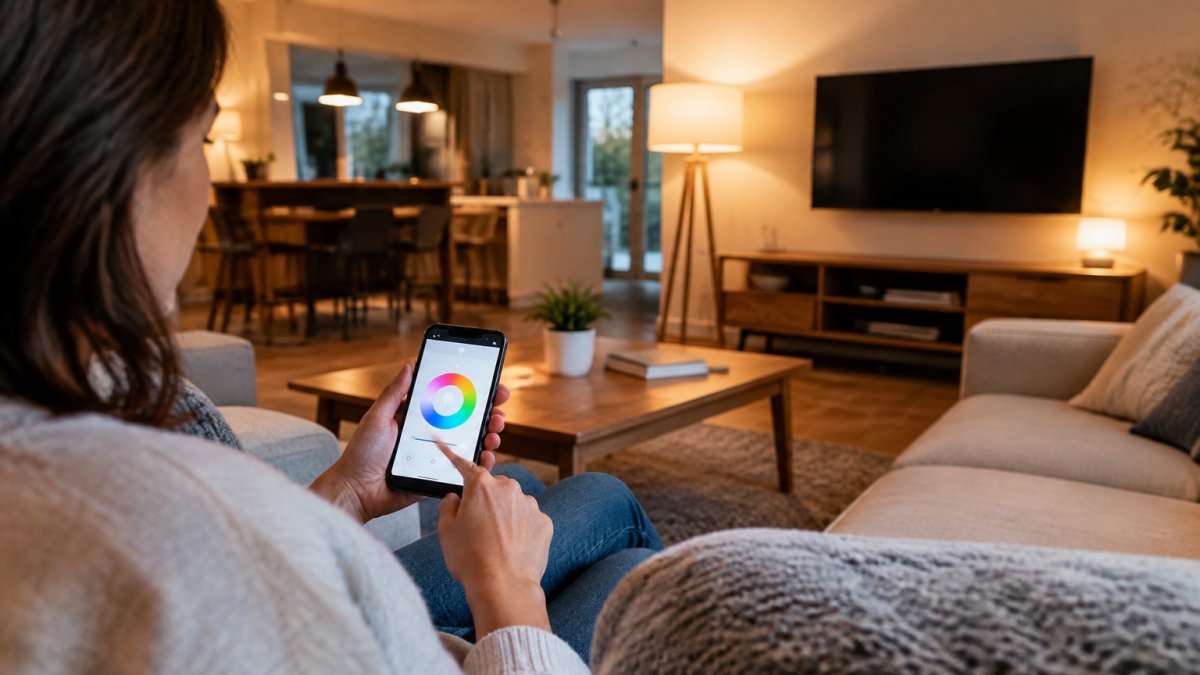
Smart home automation is the practice of having connected devices act on their own based on rules, schedules, or triggers, so your lights, locks, thermostat, and cameras work together without manual input.
Most smart home systems rely on a chain of four parts: a sensor or input (a motion detector, a door contact, a voice command), a controller or hub that evaluates the rule, a communication protocol that carries the signal, and an output device that acts on it. When any link in that chain fails, the whole routine fails. The most common breakpoints are incompatible protocols, weak wireless coverage in parts of the house, and power circuits that cut out or behave unpredictably. Each of these is fixable once you know to look for it.
Integration tends to break at the seams between brands.
Electrical conditions cause a less obvious set of problems.
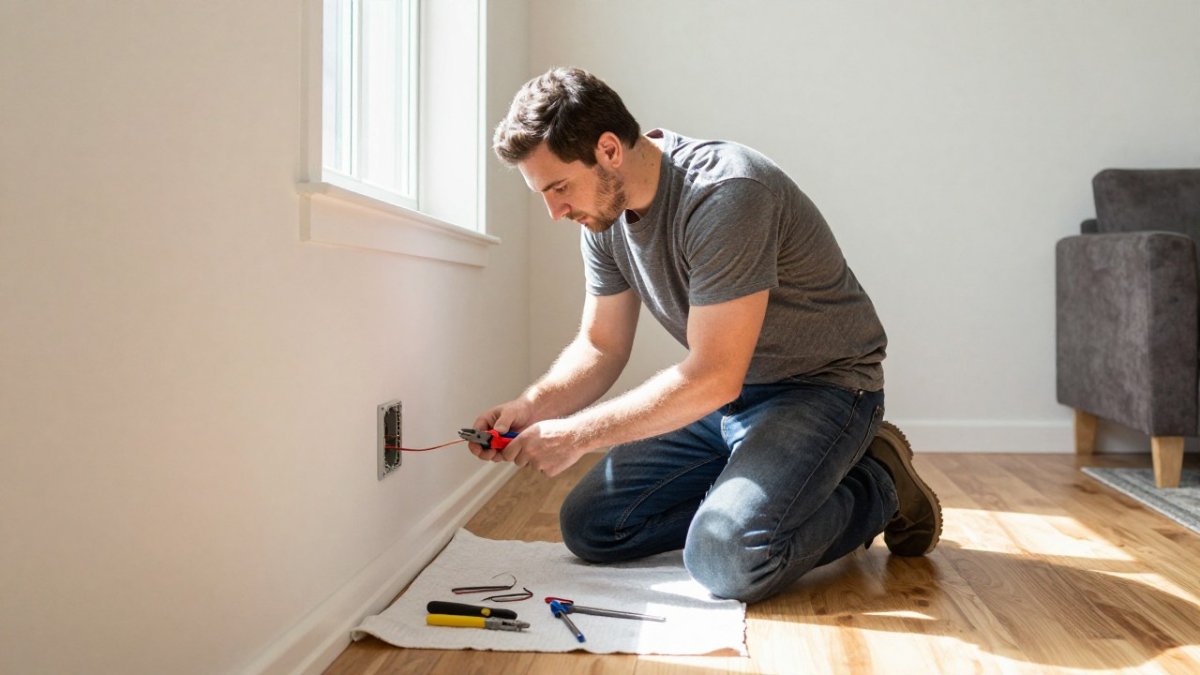
Watch out: Replacing a standard switch with a smart switch without confirming a neutral wire is present can leave the switch unpowered or cause intermittent behavior. Check the wiring before you buy.
Smart Home Devices Compatibility: Checking Before You Buy
Compatibility is the single most common reason a smart home project stalls. Before you buy anything, confirm three things: the device works with the hub or app you already use, it speaks a protocol your controller supports, and it will keep working after the next firmware update. Manufacturer compatibility lists are the starting point, but they are marketing documents, read recent user reports and release notes to see whether support has actually held up.
A practical pre-purchase checklist:
- Hub or controller: Does the device pair natively, or does it need a bridge, cloud account, or third-party app? Every added layer is another failure point.
- Protocol: Does your hub support the device's radio natively, or only through an add-on module?
- Voice and app control: Confirm the device appears in the assistant you actually use, not just the one in the marketing photo.
Matching Protocols: Wi-Fi, Zigbee, Z-Wave, Thread, and Matter
These protocols are not interchangeable, and the right choice depends on the job. Use this as a decision guide rather than a spec sheet:
- Wi-Fi connects directly to your router with no hub required. It is simple to set up and good for cameras, plugs, and devices near the router, but each device occupies network capacity, and battery-powered Wi-Fi gear drains quickly. On a crowded 2.4 GHz network, Wi-Fi devices are the usual cause of dropouts and latency.
- Zigbee is a low-power mesh protocol well suited to sensors, switches, and bulbs. Devices route signals through each other, so coverage improves as you add mains-powered devices. It needs a compatible hub, and mesh reliability depends on having enough always-powered nodes.
- Z-Wave is also a low-power mesh, operating on a different frequency band than Wi-Fi and Zigbee, which can reduce interference. It needs a Z-Wave hub, and device-to-device interoperability is generally strong within the standard.
A simple selection rule: choose one primary protocol for battery-powered sensors and switches (Zigbee, Z-Wave, or Thread), keep Wi-Fi for devices that need bandwidth or sit near the router, and prefer Matter-labeled devices when you want cross-brand flexibility. Mixing protocols is fine, mixing without a hub that supports all of them is where projects break.
Choosing a Hub That Fits Your Device Mix
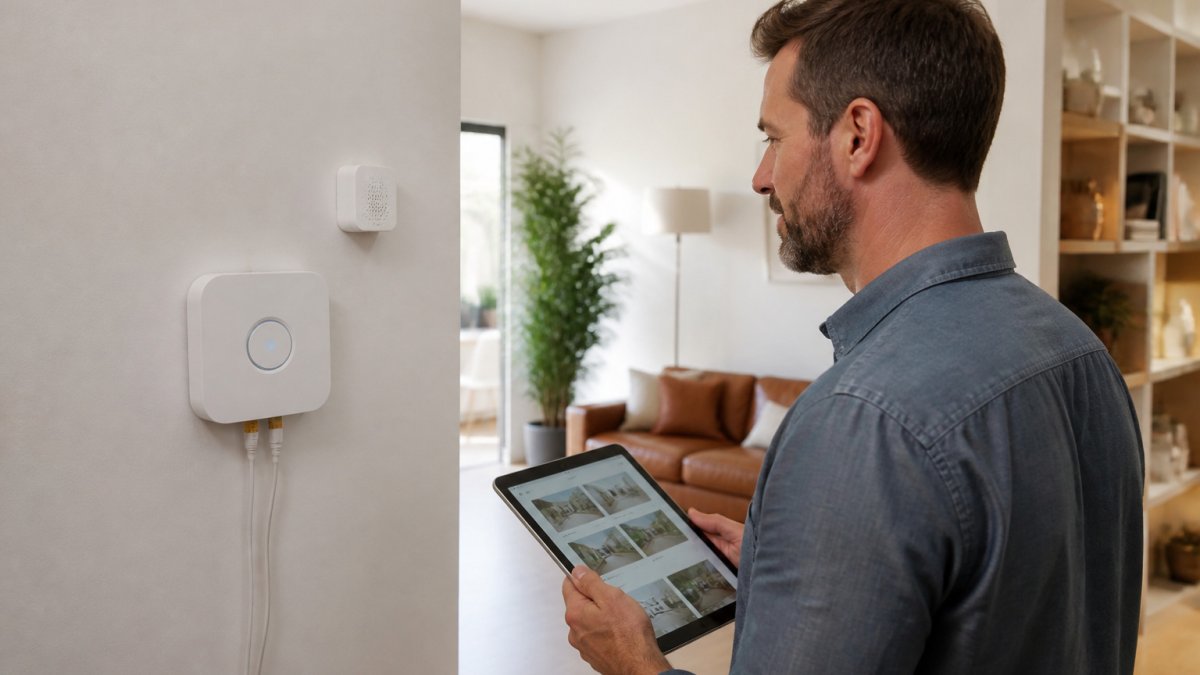
A hub is the coordinator that runs your automations, and its fit with your devices matters more than its feature list. Start by listing the protocols and brands you already own or plan to buy, then select a hub that supports all of them natively. You can compare current hub options in our best smart home hubs buyer's guide. Hubs that rely on cloud-only control can stop working during internet outages, so favor options that run local automations where possible.
Smart Home Automation Examples You Can Set Up This Week
Start with simple, high-value routines rather than an ambitious whole-house system. A "goodnight" routine can turn off lights, lock the front door, and lower the thermostat in one action. A "motion at night" rule can light a hallway path only when movement is detected. Scheduled routines that align lights and temperature with your daily habits are a good first project.
Integration Troubleshooting: Fixing Devices That Won't Connect
Most integration failures fall into four buckets: pairing problems, wireless coverage and congestion, power and wiring issues, and stale software or account state. Work through them in order rather than replacing hardware first, the fix is usually configuration, not a new device. For a detailed walkthrough, see our step-by-step integration troubleshooting guide.
Step 1: Confirm power and pairing state
Verify the device has power and is in pairing mode. Remove it from the app before re-pairing; stale pairing data causes a large share of failures. If the device paired before and stopped, check whether the hub still lists it, a device that shows offline but is powered usually needs re-pairing, not replacement.
Step 2: Check wireless coverage and congestion
- Range: Confirm the device is within range of the hub or router, or within mesh range of a powered node. Mesh networks need enough always-powered devices to route signals; a single battery sensor at the far end of the house may have no path back.
- Congestion: Wi-Fi devices on a crowded 2.4 GHz band cause dropouts and latency. Move high-bandwidth devices to 5 GHz where supported, and keep IoT devices on a separate network or SSID if your router allows it.
- Interference: Zigbee and Wi-Fi share spectrum; Z-Wave operates on a different band. Physical obstructions and metal boxes behind switches reduce range more than most people expect.
Step 3: Update firmware and re-check compatibility
Update the device firmware and the hub firmware. A device that worked before an update and stopped after is a compatibility regression, not a hardware failure, check release notes and user reports before assuming the device is dead.
Step 4: Isolate electrical causes
If a device connects but behaves erratically, flickering, dropping offline, or failing to respond, look at the electrical supply before the software. Smart switches and dimmers that lack a neutral wire, or dimmers mismatched to the bulb's load, produce symptoms that look like software bugs. Test the device on a known-good circuit to separate wiring problems from configuration problems.
Step 5: Recover and document
If a device will not recover, factory-reset it and re-pair from scratch. Keep a simple log of device model, protocol, hub, and firmware version for each device, when a failure recurs, the log tells you whether it is a pattern or a one-off. For whole-home reliability, favor hubs that run automations locally so routines keep working during internet outages.
Work through these common failure buckets in order, since the fix is usually configuration rather than new hardware.
| Problem | Cause | Fix |
|---|---|---|
| Device won't pair or shows offline | Stale pairing data or device not in pairing mode | Remove from app, confirm power, re-pair |
| Dropouts and latency | Congestion on crowded 2.4 GHz Wi-Fi band | Move high-bandwidth devices to 5 GHz; separate IoT network |
| Battery sensor unreachable | Too few always-powered mesh nodes or out of range | Add powered nodes or move device within range |
| Device stopped after update | Firmware compatibility regression | Check release notes; update hub and device firmware |
| Flickering or erratic behavior | Missing neutral wire or dimmer mismatched to bulb load | Test on a known-good circuit; verify wiring |
| Device will not recover | Corrupted configuration | Factory reset and re-pair from scratch |
Securing Your Network and Automations
Every connected device is a potential entry point to your home network, so treat security as part of integration. Before relying on new automations, you may also want to check whether your electrical panel is safe. Change default passwords, put smart devices on a separate guest or IoT network if your router supports it, and enable two-factor authentication on the accounts that control your system.
Scheduling a Professional Integration Consultation for Your Home
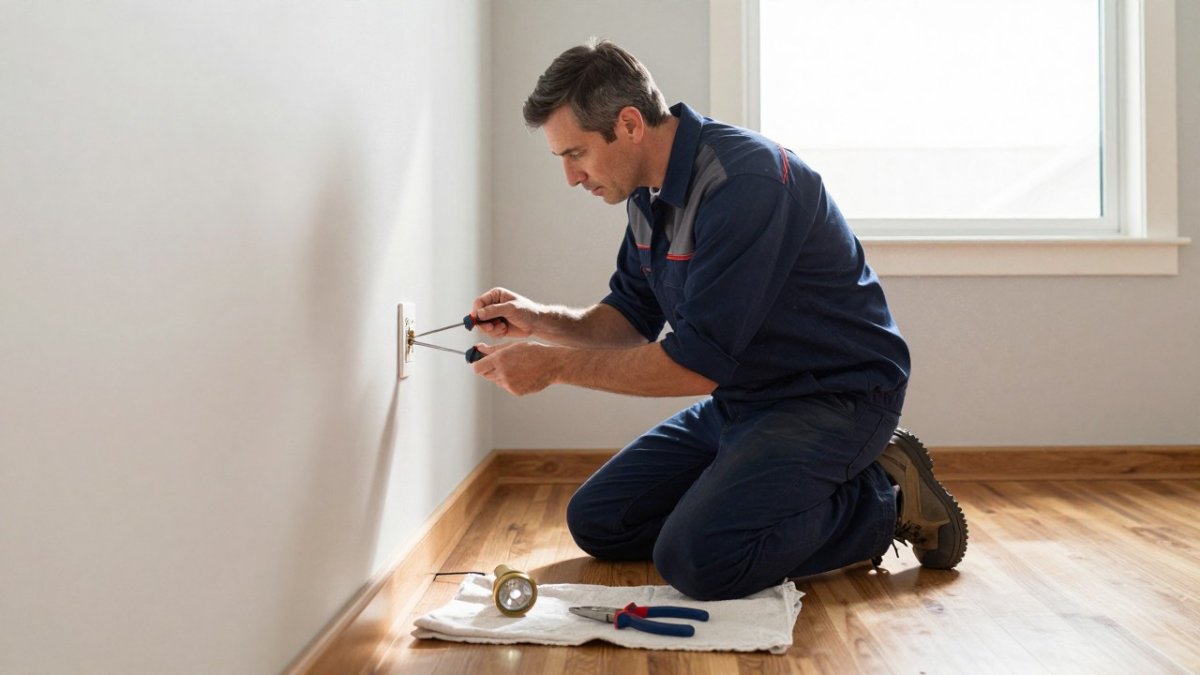
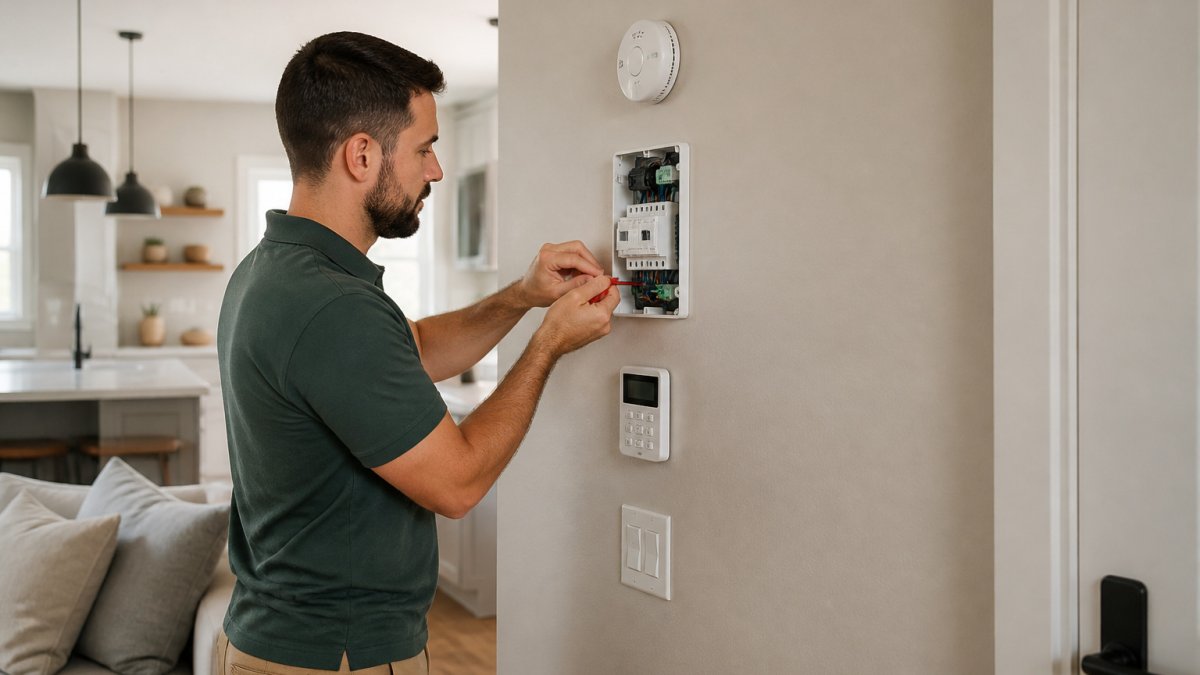
Some projects, particularly those involving wiring, neutral-wire issues, panel capacity, or whole-house integration, are better handled by a licensed electrician. You can check for signs of outdated electrical wiring in your home before planning the work. A professional consultation can assess your existing wiring, identify which devices will work with your electrical system, and map a realistic installation plan. If you are looking for help, our guide to hiring an electrician for smart home installation explains what to look for.
Frequently Asked Questions
How do I integrate smart home devices from different brands?
Start by checking whether each device supports a common standard such as Matter, Zigbee, Z-Wave, or Wi-Fi with a cloud integration your hub already supports. Devices that support Matter are the simplest route because they are designed to work across ecosystems. For older devices, a hub with broad protocol support, such as one that handles Zigbee and Z-Wave, lets you bridge them into a single app. Before buying, confirm the hub and the device share a protocol, then pair the device to the hub rather than to a separate brand app. Keep firmware updated on both ends, since mismatched versions are a frequent cause of failed integration.
Do smart home devices need to use the same Wi-Fi network?
Most Wi-Fi smart devices need to join the same 2.4 GHz network as your phone during setup, because many run on 2.4 GHz only. Once connected, they generally communicate through your router rather than directly with each other. Devices using Zigbee, Z-Wave, or Thread use their own low-power mesh networks and rely on a hub or border router instead of Wi-Fi. If your router broadcasts 2.4 GHz and 5 GHz under one name, some devices will fail to pair, so separating the bands often fixes setup problems. A mesh Wi-Fi system with consistent coverage across the house also reduces dropped connections.
How can I make smart home devices work together?
Devices work together when a hub or platform can read the state of one device and trigger an action on another. Choose one primary app or hub as the control center, then add devices that are officially supported by it. Build routines around clear triggers, such as a door sensor opening or a motion sensor detecting movement at night. Test each automation separately before combining them, since a rule that depends on three devices has three possible points of failure. Document which device controls which function so troubleshooting later is faster.
How can I make my smart home more secure?
Use a unique password for your router and for every smart device account, and enable two-factor authentication on the accounts that support it. Place smart devices on a separate guest or IoT network so a compromised camera or plug cannot reach your computers and phones. Turn off remote access features you do not use, and keep firmware updated because security patches are released through updates. Avoid cheap devices from unknown vendors that do not publish update policies. Review which third-party apps have access to your accounts and remove any you no longer use.
What are the best smart home automations for beginners?
Good first projects are simple, low-risk routines with one trigger and one action. Examples include turning lights on when a motion sensor detects movement in a hallway, setting a thermostat schedule that lowers temperature when you leave, and a goodnight routine that locks doors and turns off lights. These projects teach you how triggers, conditions, and schedules interact without risking a critical system. Once they run reliably for a few weeks, add more complex scenes that involve sensors, cameras, or multiple rooms.
How do I troubleshoot smart home devices that won't connect?
Begin by confirming the device is powered and within range of your router or hub, since weak signal causes most pairing failures. Restart the device, your hub, and your router in that order, then retry pairing. Check that the device and your phone are on the same band, usually 2.4 GHz for Wi-Fi devices. If a device still fails, reset it to factory settings, remove it from the app, and add it again. For mesh-network devices, move the hub closer to the device temporarily to rule out range problems. Persistent issues often trace to outdated firmware or a conflicting device using the same channel.
Which smart home hub works with the most devices?
A hub that supports multiple protocols, including Matter, Zigbee, and Z-Wave, typically works with the widest range of devices. Compatibility still depends on the specific device model and the hub's current software, so check the manufacturer's compatibility list before purchasing. Hubs integrated with a major voice-assistant ecosystem can also connect to many cloud-based products. Because lists change with firmware updates, verify support for your exact devices rather than relying on general claims about a hub.
How much does smart home integration cost?
Pricing depends on the number of devices, the protocols involved, whether wiring or panel work is needed, and the scope of automations you want. Costs vary widely, so T6 Electrical Contractor recommends a consultation to define the right scope for your home and budget. For current pricing and a written quote, contact T6 Electrical Contractor through the website.