 how-to
Troubleshooting Smart Home Integration Issues: Step-by-Step Guide
Table of Contents
- Diagnose Your Smart Home Problem by Symptom
- Smart Home Wi-Fi Troubleshooting: Network Connectivity Fixes
- Smart Home Hub Troubleshooting: Controller and Platform Issues
- Smart Home Automation Not Working: Fix Broken Routines and Triggers
- How to Reset Smart Home Devices: Safe Recovery and Re-Pairing
- Device Compatibility and Interoperability Checks
- Advanced Troubleshooting: Logs, Error Codes, and Escalation
- Preventive Maintenance for Stable Smart Home Integration
- Frequently Asked Questions
Last Updated: October 18, 2026
Diagnose Your Smart Home Problem by Symptom
When your smart home stops working, identify what's actually broken first. Power-cycling everything often wastes time when the real issue lies elsewhere. Narrowing down symptoms first saves hours of frustration.
Identify which layer is failing: the devices, the network, the hub, or the automation logic. Each needs a different approach.
Devices Showing Offline or Unresponsive
Offline devices are the most common complaint. An offline device usually isn't broken, communication with its hub or controller has been interrupted.
Start with the device's physical status. Is it powered on? Check the LED indicator: if it's off or red, power may be the issue. If the light shows it's connected but your app says offline, the problem is likely network-related rather than device-specific.
Automation Rules and Scenes Not Running
Automations fail silently, you only notice when lights don't turn on at sunset or a lock doesn't engage at night. The automation appears in your app's history but isn't triggering.
This usually means a trigger condition is no longer met: a low-battery motion sensor that stopped reporting, a time trigger set for the wrong day, or a device stuck in an unexpected state. We cover verification below.
Devices Not Communicating With Each Other
When devices can't talk to each other, say, a smart bulb won't respond to a smart button, the issue is usually protocol incompatibility or a missing hub.
If you've added a new device and it won't integrate with your existing setup, check whether it uses the same protocol. A Zigbee bulb won't communicate directly with a Z-Wave switch without a hub that supports both protocols.
Smart Home Wi-Fi Troubleshooting: Network Connectivity Fixes
Network problems cause most smart home integration issues. Poor signal, interference, or router configuration breaks even the best-designed automation.
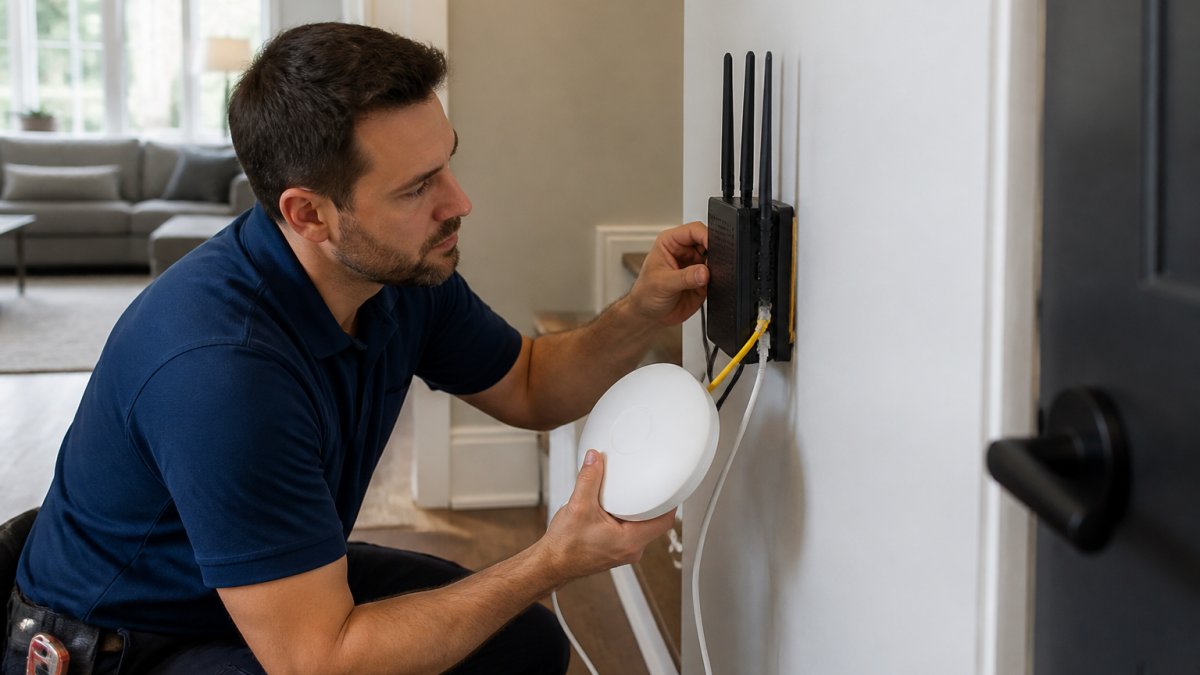
Check Signal Strength and Router Placement
Router placement affects which devices connect reliably. Devices far from the router, behind walls, or in corners drop offline intermittently. Most smart home devices need at least -70 dBm to stay stable; below that, they disconnect frequently.
Use a Wi-Fi analyzer app to check signal strength where your devices sit. Readings below -70 dBm mean placement is likely the problem.
Restart Your Router and Network Infrastructure
A router restart clears its memory, refreshes device connections, and often resolves accumulated problems. Make it your second move after checking signal strength.
Unplug the router for 30 seconds, plug it back in, and wait for lights to stabilize. With a separate modem, restart it first, wait two minutes, then restart the router, the modem must reconnect to your ISP first.
Verify Band Settings and Device Compatibility
Modern routers broadcast on 2.4 GHz and 5 GHz. Most smart home devices use 2.4 GHz because it travels farther and penetrates walls better. A 5 GHz-only router won't connect them.
In your router's admin interface, enable the 2.4 GHz band. Many routers let you name bands separately (like "WiFi-2.4" and "WiFi-5"). Disable "band steering" for smart home devices and force them to 2.4 GHz.
Smart Home Hub Troubleshooting: Controller and Platform Issues
Your hub is the central nervous system of your smart home. If it fails, most automation stops even if individual devices work. Hub problems fall into three categories: power, software, or configuration errors.
Verify Hub Power Supply and Connection Status
A hub that's unplugged or losing power intermittently causes widespread failures. Check that it's plugged into a reliable outlet with an undamaged cable. If it has a battery backup, verify it holds a charge.
Check the hub's connection to your router. Most hubs use Ethernet for stability, though some rely on Wi-Fi.
Check for Firmware and Software Updates
Hub manufacturers regularly release firmware updates that fix bugs, improve stability, and add features. An outdated hub can cause automation failures and compatibility issues. Check your hub's app or admin interface for updates.
Most hubs check automatically, but you can force a manual check. Install updates and wait for the restart, which can take several minutes. Don't unplug the hub mid-update, interrupting it can break the hub.
Resolve Conflicting Automations and Schedules
When multiple automations target the same device or overlap in time, they can conflict. Example: one turns bedroom lights on at sunset, another off at 9 PM, and a third on at 9:15 PM if motion is detected.
Review your rules for ones affecting the same devices or overlapping in time. Disable them temporarily to test. If disabling one fixes the issue, adjust its trigger conditions or timing.
Smart Home Automation Not Working: Fix Broken Routines and Triggers
Automation failures often have nothing to do with hardware or connectivity, the automation may be misconfigured, or its triggers may not match real-world events.
Review Automation Rules and Trigger Conditions
Examine each trigger condition. A 7 AM weekday trigger won't run on weekends. A motion-sensor trigger won't fire if the sensor's battery is low.
Test each trigger manually: run a time-based trigger at its scheduled time, activate a sensor (wave at a motion sensor, open and close a door), or confirm location services are enabled for location-based triggers.
Test Device Status and Sensor Response
Automations often depend on a device's state. One might run only if your front door is locked AND your alarm is armed AND it's after 10 PM.
Check each dependent device's status in your app. If a device shows the wrong state, update it manually, then retest the automation.
For sensor-based automations, verify the sensor is actually reporting data. Some sensors go silent when their battery is low.
Check Mobile App Permissions and Notifications
If your automation depends on location data or notifications, verify that your phone has granted the necessary permissions to your smart home app.
Disable any battery optimization or app-restriction settings that might prevent the app from running in the background. These settings can prevent location tracking and push notifications from working properly.
How to Reset Smart Home Devices: Safe Recovery and Re-Pairing
Sometimes a device gets into a broken state that a simple restart won't fix. When that happens, a reset followed by re-pairing is necessary. Understanding the difference between a power cycle and a factory reset is critical, one is safe and quick, the other erases all configuration and should only be used as a last resort.
Power Cycle vs. Factory Reset: When to Use Each
A power cycle is simply turning a device off and back on. Unplug it, wait 30 seconds, and plug it back in. This clears the device's memory without erasing its configuration.
A factory reset erases all settings and returns the device to its original state. You'll need to re-pair it with your hub and reconfigure any device-specific settings. Only do this if a power cycle doesn't fix the problem.
Step-by-Step Device Re-Pairing Process
After a factory reset, your device is blank and needs to rejoin your network. Remove the device from your hub's app first, this tells your hub to forget about it.
Once paired, the device will appear in your app as a new device. Give it the same name and location as before so your automations still reference the correct device.
Prevent Data Loss and Security During Reset
Before resetting a device, take a screenshot of its current settings if possible. This helps you reconfigure it faster after the reset. If the device has custom scenes or routines assigned to it, note those down.
When re-pairing, ensure your hub's pairing mode is set to a secure pairing option if available. Some hubs offer both open pairing (faster but less secure) and secure pairing (slower but encrypted).
Device Compatibility and Interoperability Checks
Smart home integration issues often stem from devices that don't speak the same language. Understanding which protocols your devices use and whether your hub supports them is essential.
Verify Protocol Support and Platform Integration
Smart home devices use different communication protocols: Wi-Fi, Zigbee, Z-Wave, Thread, and Bluetooth are the most common. Your hub must support the protocols your devices use. A hub that only supports Zigbee won't work with Z-Wave devices.
Check your hub's specifications to see which protocols it supports. Then verify that each device you want to add uses one of those protocols.
Check for Known Compatibility Issues
Some device combinations have known issues. A particular brand of smart bulb might not work well with certain hubs, or a newer device might not be fully compatible with an older hub that hasn't received recent software updates.
If you discover a compatibility issue after purchase, check whether a firmware update for your hub has been released. Sometimes manufacturers fix compatibility issues through software updates.
Advanced Troubleshooting: Logs, Error Codes, and Escalation
When basic troubleshooting doesn't work, you need to dig deeper into system logs and error messages.
Review System Logs and Error Messages
Most hubs keep a log of recent events and errors. Open your hub's app and look for a "logs," "history," or "diagnostics" section.
Look for patterns. If a device disconnects at the same time every day, it might be a scheduled restart or interference from another device. If an automation fails repeatedly with the same error message, that message often points to the specific problem.
When to Call a Professional
If you've worked through these steps and your smart home integration issues persist, it's time to call in professional help. Our team can diagnose problems that go beyond software configuration, issues with your electrical infrastructure, network wiring, or complex multi-protocol setups.
For complex integrations involving smart home automation, EV charging, and electrical upgrades, we provide personalized consultations to design a system that works reliably.
Preventive Maintenance for Stable Smart Home Integration
The best troubleshooting is prevention.
Check your hub and router monthly to ensure they're powered on and showing normal status lights.
Review your automations every few months to ensure they still make sense and aren't conflicting with each other.
A stable smart home requires attention, but not much.
Smart home integration issues are frustrating, but most have straightforward fixes once you know where to look.
Frequently Asked Questions
What are the most common smart home integration issues?
The most common problems are Wi-Fi connectivity failures, devices going offline unexpectedly, automation rules that don't run, and incompatible devices not communicating with each other. Many of these stem from weak network signal, outdated firmware, or conflicting automation schedules. Restarting your router and checking device compatibility often resolves the issue without requiring professional help.
How do I troubleshoot smart home Wi-Fi problems?
Start by checking your router's signal strength near the affected devices. Move your router to a central location or add a mesh network extender if coverage is weak. Restart your router by unplugging it for 30 seconds, then check that your devices are connected to the correct Wi-Fi band (2.4 GHz vs. 5 GHz). Verify that your network password is entered correctly in each device's settings, and confirm your router firmware is up to date.
When should I reset a smart home device versus just restarting it?
Use a restart (power cycle) first: unplug the device for 30 seconds, then plug it back in. This fixes most temporary glitches. Reserve a factory reset for persistent problems after you've tried restarting, checking Wi-Fi, and updating firmware. Be aware that a factory reset erases all settings and automations for that device, requiring you to re-pair it and reconfigure its rules. Document your automation setup before resetting.
Why are my smart home devices not communicating with each other?
Devices fail to communicate when they use incompatible protocols (like Zigbee vs. Wi-Fi), when the hub is offline or needs a firmware update, or when they're not properly paired to the same network. Verify that all devices support your hub's platform, check that the hub has a stable internet connection, and confirm each device is paired correctly. If devices are on different Wi-Fi bands or subnets, they may not see each other; consolidate them onto the same network if your router supports it.